[ HOME ] > [ PERSONAL COMPANION ] > [ INDEX ] > ( BACKGROUNDS )
You'll be able to change the current room's background here.
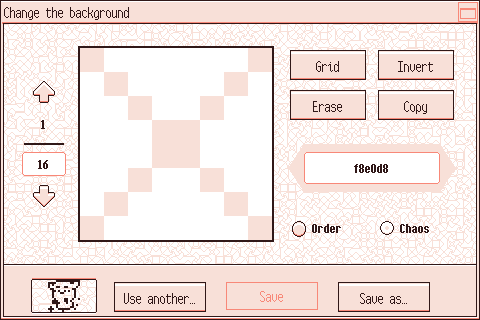
Press the image below to learn what each thing means:
---
You'll be able to change the tile using the arrows.
Press the upper arrow to see the next tile and the lower one to see the previous tile.
The upper number displays the current tile and the one below shows how many tiles there are in total.
If you lower this number, the last tiles will be removed. If you increase it, blank tiles will be
added to the end of the list.
This is the canvas.
Use the mouse's left button to draw and the right one to erase.
Press "Invert" to erase with the left button and draw with the right one.
Press this button to show or hide the grid.
Press this button to change what each of the mouse's buttons does on the canvas.
Press this button to clear the canvas.
Press this button to copy the current tile.
Press it once more when you want to paste the image you copied.
You may change the background's color here.
You have to write the hexadecimal triplet for the color you want.
It can be either a byte for each RGB primary color or a single digit for each.
For example, we're using the color "f8e0d8" here. It would be composed by:
· R (Red): f8 (248)
· G (Green): e0 (224)
· B (Blue): d8 (216)
Use these radio buttons to choose whether the tiles will appear in order or at random ("Chaos").
If you have 3 tiles and you pick the first option, they'll appear in this order:
[1] [2] [3] [1] [2] …
[2] [3] [1] [2] [3] …
[3] [1] [2] [3] [1] …
[1] [2] [3] [1] [2] …
[2] [3] [1] [2] [3] …
…
Press your PC to return to the main menu.
Press here to load a background from a file or pick one of the four default ones.
Press "Save" to save this background.
You can't overwrite a default backgound's data.
Press "Save as…" to save this background to a new file.
You'll have to choose a name for it.
If you make a mistake, you can undo it with the key shortcut Ctrl + Z.
To redo, you can use the shortcut Ctrl + Shift + Z.
The game will forget the changes you've made if you change which sprite you're modifying,
so you won't be able to use these shortcuts if you do that.