[ HOME ] > [ PERSONAL COMPANION ] > [ INDEX ] > EDIT EGG > ( ANIMATIONS )
You'll be able to modify the animations the character you've chosen does here.
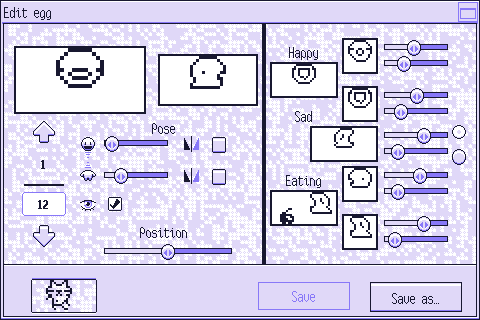
Press the image below to learn what each element does:
---
In the smaller window (right), you'll see this character's full idle animation.
In the larger window (left), you'll see the frame you're changing right now.
Use the controls below these windows to alter the frame.
You'll be able to change the frame using the arrows.
Press the upper arrow to see the next frame and the lower one to see the previous frame.
The upper number displays the current frame and the one below shows how many frames there are in total.
If you lower this number, the last frames will be removed. If you increase it, default frames will be
added to the end of the list.
Use the upper slider to change the head pose and the lower one to change the body pose.
You'll find a checkbox next to each slider. Check it to flip horizontally that body part.
With this checkbox you'll be able to choose whether the character is visible in this frame or not.
Use this slider to change the character's horizontal position. It's relative to the previous frame.
You can use these controls to modify the animation this character makes when they're happy.
There are two frames and each of them has two sliders by its side.
Use the one above to change the head's pose and the one below to change the body's.
You can use these controls to modify the animation this character makes when they're upset or bugged.
Use the sliders to choose the poses for the head (above) and the body (below.)
One of these parts will flip as the animation plays. Use the radio buttons to pick which.
You can use these controls to modify the animation this character makes when they're eating.
There are two frames and each of them has two sliders by its side.
Use the one above to change the head's pose and the one below to change the body's.
Press your PC to return to the character data editing menu.
Press "Save" to save all the data in this egg.
You cannot overwrite a default egg's data or the data of an egg currently in use.
Press "Save as…" to save this data to a new file.
You'll have to choose a name for it.