[ HOME ] > [ PERSONAL COMPANION ] > [ INDEX ] > EDIT EGG > ( CHARACTERS' SPRITES )
You'll be able to modify the sprites this egg's characters use here.
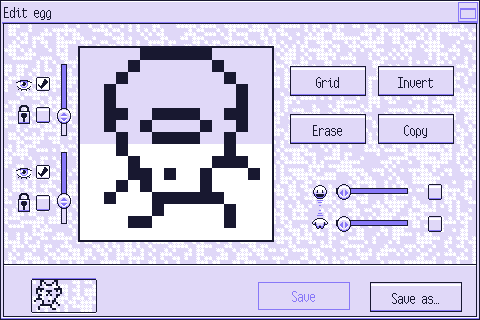
Press the image below to learn what each element does:
---
You'll see two groups of elements around here.
The one above is for the head and the one below is for the body.
Each group has three elements.
Two of them are checkboxes.
The one next to the eye (above) lets you show or hide the corresponding half of the canvas
and the one next to the lock (below) lets you block that half of the canvas.
If a half of the canvas is hidden or locked, you won't be able to modify it.
The remaining element is a slider which you can use to select the head or body you want to edit.
This is the canvas.
Use the mouse's left button to draw and the right one to erase.
Press "Invert" to erase with the left button and draw with the right one.
The half of the canvas that's currently selected will have a white background. The other one's will be the same color as the current room.
If one of the halves is hidden or locked, it will use the window's shading color as its background color.
Press this button to show or hide the grid.
Press this button to change what each of the mouse's buttons does on the canvas.
Press this button to clear the selected half of the canvas.
Press this button to copy the selected half of the canvas.
Press it again when you want to paste the copied image.
Use the slider above to change the head's pose and
the one below to change the body's pose.
The checkboxes on the right can be used to show or hide the first pose as a guide.
Press your PC to return to the egg edition menu.
Press "Save" to save all the data in this egg.
You cannot overwrite a default egg's data or the data of an egg currently in use.
Press "Save as…" to save this data to a new file.
You'll have to choose a name for it.
If you make a mistake, you can undo it with the key shortcut Ctrl + Z.
To redo, you can use the shortcut Ctrl + Shift + Z.
The game will forget the changes you've made if you change which sprite you're modifying,
so you won't be able to use these shortcuts if you do that.