[ HOME ] > [ PERSONAL COMPANION ] > [ INDEX ] > ( KITCHEN )
Before you can feed your PC, you'll have to cook something.
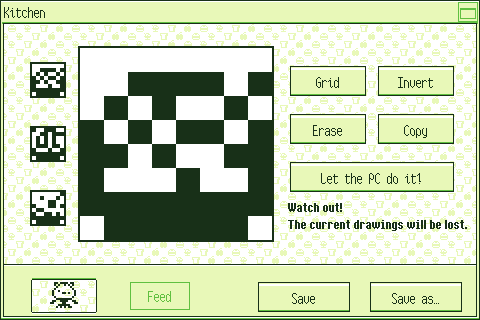
Press the image below to learn what each part of the kitchen does:
---
Press one of these sprites to edit it on the canvas.
If you press one of these while "Copy" is selected, this sprite will be copied
and it will overwrite the current one.
You can also right-click on one of them to use it as a guide.
This is the canvas.
Use the mouse's left button to draw and the right one to erase.
Press "Invert" to erase with the left button and draw with the right one.
Press this button to show or hide the grid.
Press this button to change what each of the mouse's buttons does on the canvas.
Press this button to clear the canvas.
Press this button when you want to copy one of the other sprites onto this one. Remember you have to press that sprite on the left side of the screen afterwards.
Press here to let your PC cook something.
Each character will make a different thing!
Bear in mind that you'll lose the current drawings if you press this button.
Press your PC to return to the food menu.
Press here to give this food to your PC.
You'll only be able to do this if none of the sprites are blank.
If you're modifying an existing file, you may press this button to save the changes you've made.
You'll only be able to do this if none of the sprites are blank.
Press this button to save the food to a new file.
You'll have to name the food to do so.
You'll only be able to do this if none of the sprites are blank.
If you make a mistake, you can undo it with the key shortcut Ctrl + Z.
To redo, you can use the shortcut Ctrl + Shift + Z.
The game will forget the changes you've made if you change which sprite you're modifying,
so you won't be able to use these shortcuts if you do that.