[ HOME ] > [ PERSONAL COMPANION ] > [ INDEX ] > ( SETTINGS )
You'll be able to change the settings to your liking here.
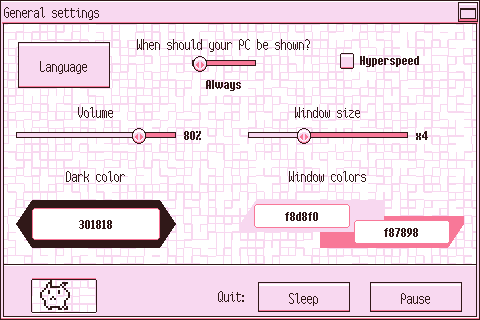
Press the image below to learn what each thing does:
---
Press here to change the language.
You can use this slider to choose when the PC windows show up while the main one is minimized.
Your options are:
· To always show them.
· To only show them when your PC needs your care.
· To never show them.
If you check this, your PCs will grow and need your care ten times faster than usual.
It will uncheck itself whenever any of your PCs needs your attention.
You can change the sound effect's volume with this slider.
You can change PC windows' size when you minimize the main one with this slider.
You'll be able to change the dark color used for the sprites here.
You have to write the hexadecimal triplet for the color you want.
It can be either a byte for each RGB primary color or a single digit for each.
For example, we're using the color "301818" here. It would be composed by:
· R (Red): 30 (48)
· G (Green): 18 (24)
· B (Blue): 18 (24)
You can change the window's color here. There are two: the main one and the shading one.
You have to write the hexadecimal triplet for the color you want.
It can be either a byte for each RGB primary color or a single digit for each.
For example, we're using the color "f87898" for the shading here. It would be composed by:
· R (Red): f8 (248)
· G (Green): 78 (120)
· B (Blue): 98 (152)
Press your PC to return to the main menu.
Press one of these buttons to quit the game.
Press "Sleep" if you'd like your PC to keep growing while the game is off.
Bear in mind that your PC's health may worsen if you leave the game off for too long.
In order to prevent this from happening, press "Pause" if you are not going to play for a few days.
Choosing this option will also stop your PC from growing while the game is off.